![94682b08-af4e-42f2-b868-af7439511c70.jpg]](https://support.growdata.com.au/hs-fs/hubfs/94682b08-af4e-42f2-b868-af7439511c70.jpg?height=50&name=94682b08-af4e-42f2-b868-af7439511c70.jpg)
- Navigate to the menu, and select 'Fertiliser Application' > 'Fertigation'
- Select 'Create Fertigation'
- Enter planned activity date in 'Date' field
- Enter job name - this will appear on reports, instruction sheet, and records menu
- Select farm where activity will occur
- Select supervisor and employee who will be completing the job
- Employees in drop down menus will populate from those entered in 'Employees' tab
- Choose shed - this is where the chemical stock will be drawn from
- To add a chemical to the job, hit the + and select chemical from drop down menu (only fertilisers will appear)
- Enter 'Rate per Hectare'
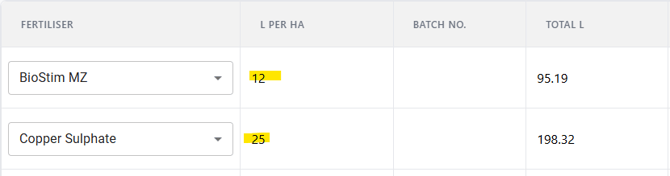
- To add blocks, hit 'Select Blocks' to the bottom right of the screen (in browser).
All blocks within the farm chosen will be available to select.
To select multiple blocks from the list, toggle 'Ctrl' to select multiple blocks from within the list, 'Shift' to select all blocks within first and last chosen within the list, or 'Ctrl + A' to select all blocks. Grey = selected - 'Apply Chemical to Blocks' to finalise
- Total quantity (L) of each chemical required will be calculated based on total hectares of blocks
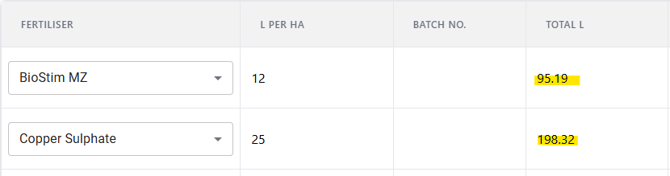
- Enter planned start and finish times
- 'Save' instruction sheet to make sure record is created
- Select 'Instruction Sheet' to save and/or distribute to operator
Completing/Finalising the Job:
Once the job has been actioned, come back to the record to finalise in the system. This will then deduct the chemicals used from inventory, update records, and account for the costs of the machine/employee if applicable.
- Navigate to 'Dry Application' from the main menu.
- If the record is not visible, you can search using the filter at the top of the records:

- Once job is located, select 'View/Edit' to enter the record
- Input/update remaining information:
- Batch number(s)
- Start and finish times - can update exact times, and/or total time taken
- Weather data (drag bars up from bottom to populate)
- Once all information is correct, change the status from 'Planned' to 'Completed'. All fields will now be greyed our and unable to be changed unless the status is changed back to 'Planned'
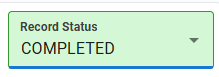
- Hit 'Save' to keep changes