![94682b08-af4e-42f2-b868-af7439511c70.jpg]](https://support.growdata.com.au/hs-fs/hubfs/94682b08-af4e-42f2-b868-af7439511c70.jpg?height=50&name=94682b08-af4e-42f2-b868-af7439511c70.jpg)
Submit a purchase record to keep track of all chemical and fertiliser purchases, this will be used to calculate stocktake in conjunction with chemical application records.
- Navigate to the menu, and select 'Inventory Management' > 'Purchase Records'
- Select 'Create New Purchase Record'
- Enter invoice date, supplier, and the shed where the chemicals are being allocated
- You can also add the PO number, invoice number, and notes if desired
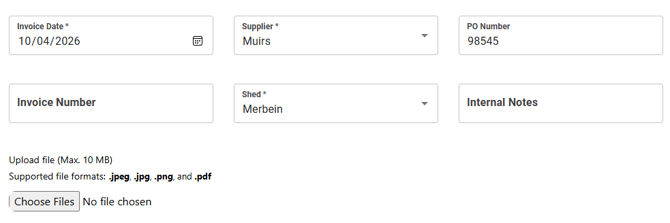
- There is an option to upload a file (e.g. invoice, delivery docket) by selecting 'choose files'
- Once PO details are entered, add a chemical by selecting 'Add Chemical Detail Item'
- Select chemical item from dropdown - if you are receipting in a new chemical, you will need to set it up in the Chemical Setup module in Farm Setup
- Enter batch number and date of manufacture

- Enter number of containers and container size - this will calculate the total quantity of chemicals purchased (cannot be manually edited

- Enter price per container. This will calculate the total price for that chemical and the price per kg/l for this invoice. This can be compared to the 'current price' in the system, and you have the option to select 'update' to update the price according to this PO.

- Repeat steps 7-10 for each chemical on the purchase order
- Once all entered and correct, hit 'Save & Receipt Stock In'
- The purchase record will now appear on the list
- If you need to cancel the PO, locate on the menu, select 'more' and 'void'. It will now be removed from the list but still available to view in 'Voided Records'