![94682b08-af4e-42f2-b868-af7439511c70.jpg]](https://support.growdata.com.au/hs-fs/hubfs/94682b08-af4e-42f2-b868-af7439511c70.jpg?height=50&name=94682b08-af4e-42f2-b868-af7439511c70.jpg)
Creating/Planning a Spray Job:
- Navigate to 'Spray Diary' through the menu to the left of the screen.
If this is not displayed on the screen, it can be accessed through the menu icon ( ) in the top left corner of the dashboard.
 - 'Create Spray Record'
- Enter planned activity date in 'Date' field
- Enter job name - this will appear on reports, instruction sheet, and spray diary records menu
- Select farm where activity will occur
- Select supervisor and employee who will be completing the job
- Employees in drop down menus will populate from those entered in 'Employees' tab
- Select activity type, options include 'foliar' or 'herbicide'
- Choose machine
- Please note, if the activity type is 'herbicide' only machines that have the herbicide field ticket on the machine setup will be visible for selection)
- Choose shed - this is where the chemical stock will be drawn from
- Enter Gear/RPM
- To create a new Gear/RPM option, double click on the Gear/RPM box. Once created, will remain an option for all future entries
- Default concentration of 1, update if required
- To add a chemical to the job, hit the + and select chemical from drop down menu
- Rate will remain empty until blocks, and therefore crop type, have been entered
- To add blocks, hit 'Select Blocks' to the bottom right of the screen (in browser).
All blocks within the farm chosen will be available to select.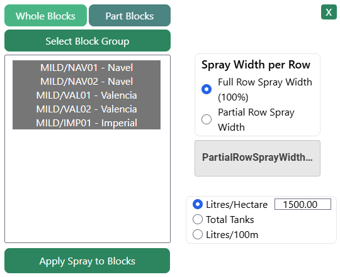
To select multiple blocks from the list, toggle 'Ctrl' to select multiple blocks from within the list, 'Shift' to select all blocks within first and last chosen within the list, or 'Ctrl + A' to select all blocks. Grey = selected
- Select 'full row' or 'partial row' spray width
- Choose whether 'Litres/Hectare', 'Total Tanks', or 'Litres/100m' and enter desired amount
- 'Apply Spray to Blocks' to finalise

- Enter planned start and finish times
- System will have the 'complete' block selected as the default, but there is the option to select inside/outside rows which will recalculate the total tanks required
- Once all details are entered and correct, select 'Instruction Sheet' to view job details.
In the PDF view, emails can be entered to send to spray operator/necessary staff.
The PDF can also be downloaded for distribution an alternative way if desired. - Press 'save' to ensure details are kept in the system
Completing/Finalising a Spray Job:
Once the spray job has been actioned, come back to the spray record to finalise in the system. This will then deduct the chemicals used from inventory, update spray records, and account for the costs of the machine/employee if applicable.
- Navigate to 'Spray Diary' from the main menu.
- If the record is not visible, you can search using the filter at the top of the records:

- Once job is located, select 'View/Edit' to enter the record
- Input/update remaining information:
- Batch number(s)
- Start and finish times - can update exact times, and/or total time taken
- Total tanks used (if differs from planned) via 'Select Blocks'
- Weather data (drag bars up from the bottom of field to populate)
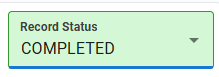
- Once all information is correct, change the status from 'Planned' to 'Completed'. All fields will now be greyed our and unable to be changed unless the status is changed back to 'Planned'
- Hit 'Save' to keep changes